

1.1 Apache, MySQL, and PHP Package Installation
Filed Under ( Joomla, MySQL, PHP, Programming, Technology, Tutorial ) by admin on 10-09-2009
Tagged Under : apache, Joomla, MySQL, PHP, Programming, server
In this training session, we will use AppServer. You can download the AppServer package at www.appservenetwork.com. You can use 2.5.x. version. In this version, you will get PHP 5. If you download 2.4 versions, you will get PHP 4. I suggest you in using 2.5.x.
Beneath are the steps of AppServer installation:
1. Click twice the AppServer setup.
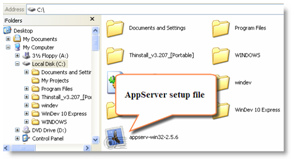
Picture 1.1 AppServer setup file
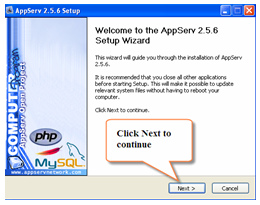
Picture 1.2 Wellcome page
2. You will get the welcome page as you can see in the picture 1.2. Click the Next button to continue. You will get the agreement page as you can see in the picture 1.3.
Picture 1.3 The agreement page of using AppServer
3. If you agree with the agreement, click I Agree button. Unfortunately, you have to agree with the agreement in order to continue this training session. You will get the installation location page as you can see in the picture 1.4.
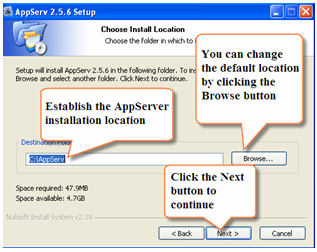
Picture 1.4 Installation location
4. In this page, the installation will get install in the directory C:/AppServ by default. You can change this location by typing the new location in the field destination folder. Another way, by clicking the browse button. Then, choose the location in the dialog box that appears. Next, click the Next button. You will get the component list page.
5. In the component list which is installed, choose all of the components. You can see it in the picture 1.5. Click the Next button to continue.
Picture 1.5 The component list which will be installed
6. Next, you will get the page that is used to set the Apache HTTP Server. There are three informations that you should have to input:
- Server Name, fill with localhost.
- Administrator’s Email Address, type your email address.
- Apache HTTP Port, You can use default for the port web server: 80, but you change it. If you need port 80 is being used for another server, for example: special for ASP.NET, and do not want to descend upon it, you can use another port.
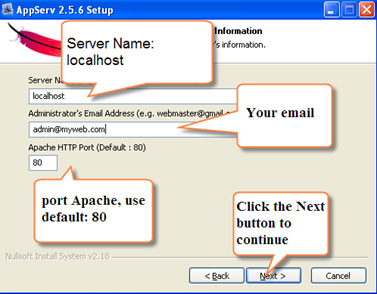
Picture 1.6 Apache HTTP Server Information
7. Click the Next button to continue.
8. Next, we give password for MySQL. Type your chosen password, example: 1234, then repeat it again. Click the Install button if you are already sure.
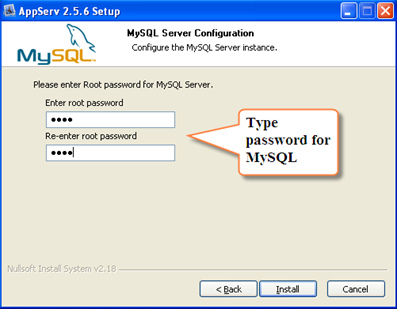
Picture 1.7 Establish password for MySQL
9. Wait until the installation process is finish.
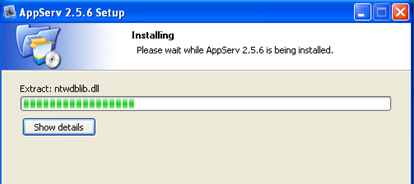
Picture 1.8 Installation process
10. Possibility, you will get interruption as in the picture 1.9. It is because the firewall is active. Click the Configure� button.
Picture 1.9 Warning from the Internet Connection Firewall
11. Check the Apache HTTP Server. Click the OK button, and click the Close button.
Picture 1.10 Internet Connection Firewall setting
12. The installation process is already finish. You will get the appearance as you can see in the picture of 1.11. In order to use AppServer directly, just make sure that you already give the check sign in the choise of Start Apache and Start MySQL. Click the Finish button.
Picture 1.11 The last installation page
You already succeeded in installing the AppServer package. To test it, open your browser such as Internet Explorer or Firefox. Then type http://localhost. If you want to get the appearance as in the picture 1.12, means that your installation is greatfull success!!
Picture 1.12 The beginning appearance of localhost for AppServer
Picture 1.13 Information about the installed PHP
If you want to know about the PHP configuration or module which is installed, you can open http://localhost/phpinfo.php. The result will be as in the picture 1.13.
Related posts:

[...] 1 Joomla! Instalation 1.1 Apache, MySQL, and PHP Package Installation 1.2 Joomla Database Preparation 1.3 Joomla! [...]