

Windows Vista Tips: Recover Deleted Files
Filed Under ( Technology, Tips, Windows Secret ) by admin on 14-05-2009
Tagged Under : Backup, Restore, Tips, undelete, Vista, Windows
Windows Vista System Restore lets you roll back most of your important system files to an earlier date, but you can also restore single files or documents that have been deleted or modified since the last backup (in Vista Business or Vista Ultimate).
System restore points are automatically created each day, or at a major system event (such as installing an application).
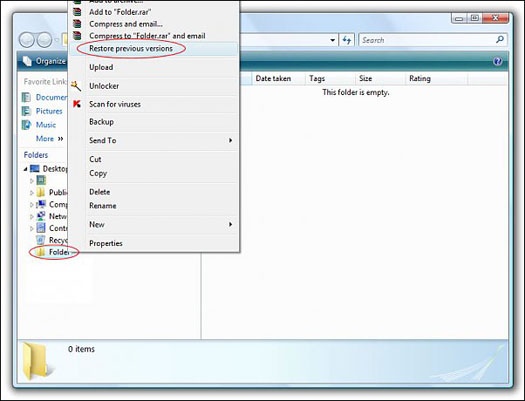
Assuming system restore is enabled, you can then restore a file by browsing to the folder it was stored in, right click on it and select Restore Previous Versions:
Once the Folder Properties box has loaded you will be presented with a list of previous saved versions of this folder. Select the restore point you wish to use by clicking on it (in this example, there is 1 restore point):
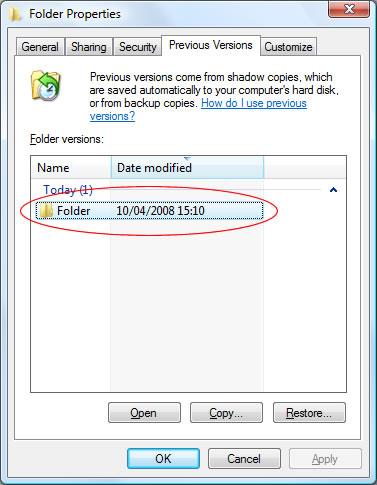
- Open allows you to browse the archive of the folder from the restore date, letting you drag and drop any number of files out of the archive (probably the easiest method).
-
Copy will prompt you to select a destination folder to copy all of the backup archive to. This is useful if you want to restore the entire folder to a new location.
-
Restore will overwrite the currently selected folder with all the files from the restore point (overwriting any modifications). Only use this if you are aware any file since this restore date will be overwritten.
Related posts:
