A firewall is a bit of software (or hardware) that inspects network traffic and filters it based on a set of pre-defined rules. Generally speaking, this allows you to improve the security of your PC by blocking attempts to exploit flaws in Vista and other software.
Windows Vista does already come with a free firewall, but it is simple and only allows minimal customisation. To access the free firewall, go to Control Panel > Security > Windows Firewall. This should be enabled by default and provides a basic level of protection. If you also have a hardware router to connect to the internet, you will have an additional layer of protection which may be adequate enough.
However, if you want to see which programs on your PC are “dialing home” and passing on information then a more advanced firewall is required. The following free firewalls should give you this extra level of customisation:
If you are going to use a password for anything, you may as well make sure it is a strong one. “Strong” meaning that it would be difficult for someone to guess or crack the password using many of the tools available on the net.
Some tips to create a good strong password would be:
Don’t use any names/words that someone close to you could guess (such as a pet or partners name)
Don’t use a dictionary word, as many cracking tools can run through word lists in seconds
Make the password at least 8 characters long
Use a combination of upper and lowercase letters
Add numeric characters and symbols where possible
Use a different password each time where possible (at least for sensitive things like online banking)
Examples of a weak password would be : dodgem, 1password, dog12345
Examples of a strong password would be : 4gYu-9yQba, 7Fius7fd5, 6NKJnsd8a
There are plenty of free password generator sites on the internet, a good example being : http://www.goodpassword.com/. This site allows you to generate a secure password based on many different variables.
You may find when using some editions of Windows Vista that your password expires and you are required to change it. This problem will keep re-occurring until you change your account profile to prevent password expiration.
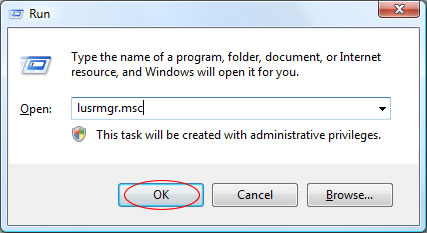
To do this, start lusrmgr.msc from the run box (Press WINDOWS KEY + R to access this):
Once the Local User Manager has loaded, click Users in the left column and then double click your username in the main window:
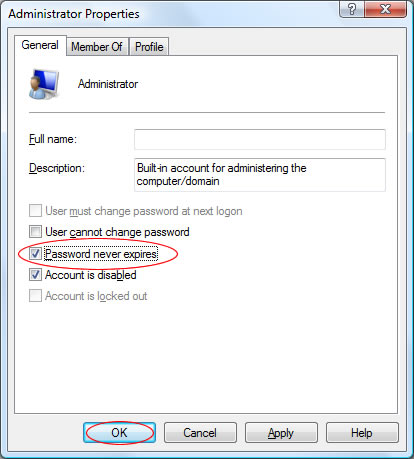
Now, tick the Password Never Expires box followed by OK:
In future, you password will not expire. Allowing you to log on without needed to change your password again.
Locking Windows Vista is a good way to secure your PC when you leave your computer for a while (especially in an office environment). Normally you can lock Vista by clicking on the padlock icon on the start menu or by pressing WINDOWS KEY + L. However, you can easily add an icon to the desktop to perform this same task.
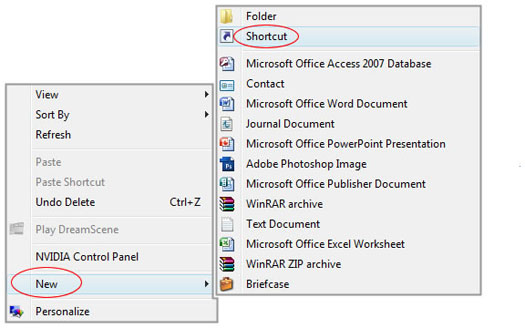
First, right click on the desktop and select New then Shortcut:
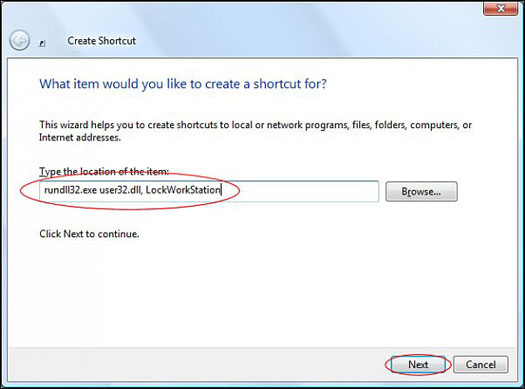
Now, enter “rundll32.exe user32.dll, LockWorkStation” into the text box then click Next:
You can then enter a title for the icon and click Finish:
Your icon will now be placed on the desktop, and double clicking it will lock your PC:
Although Vista allows you to encrypt files and folders using the Windows file security system. However if you wish to protect your files, you will need to have a Business or Ultimate edition of Vista. You will not be prompted for a password each time you access the file, only when you log on to your user account. This user account has the decryption key associated with it, allowing you access to the data.
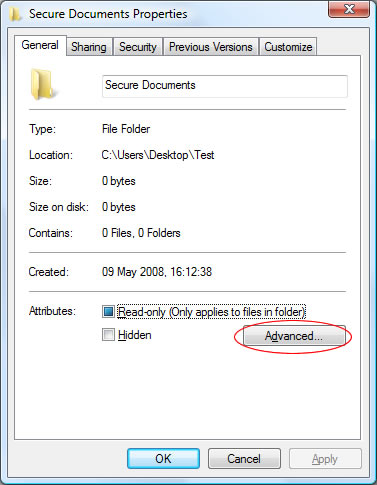
To begin, right click the folder you wish to encrypt and select Properties:
Then, click the Advanced button:
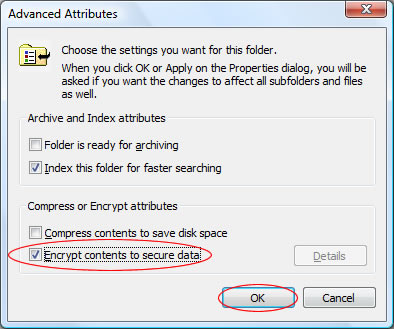
Now tick Encrypt Contents to Secure Data and then click OK:
If you encrypted a folder you will be asked if you wish to also secure the files/sub-folders within this. To do this, ensure Apply Changes to this folder, subfolders and files is selected and click OK:
You have now successfully encrypted your files. If this is the first time you have done this you may be prompted to backup the security key used to decrypt the files. If you do not back this up you will not be able to access your files if the key is lost or damaged on your PC.
Some users have been experiencing problems with a “No Audio Output Device Installed” error when trying to play music, or when hovering the mouse over the speaker icon in the system tray. You may get a white X in a red circle to indicate this error.
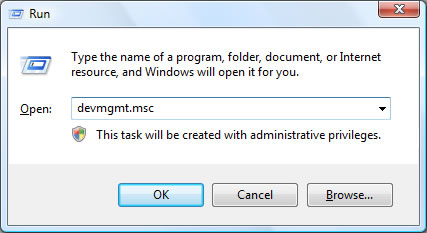
Go to the device manager by pressing WINDOWS KEY + R to go to the run menu, and then run “devmgmt.msc“.
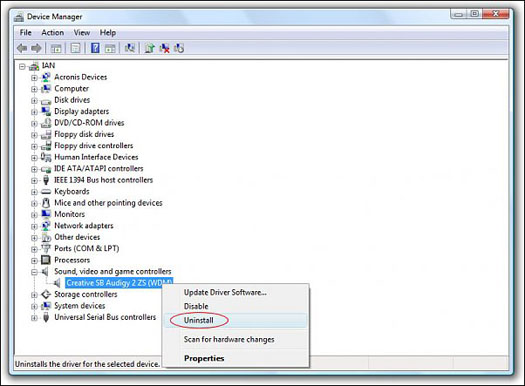
From here, select your malfunctioning audio device(s) and make a note of the driver name. Then, right click on it and select Uninstall. This will remove the audio drivers from your system.
Once this is done, re-load the drivers for your sound card from the CD your manufacturer gave you with your PC or sound device. If you cannot find this, search for the driver on the manufacturers website using the driver name that has been written down.